
How to Fix macOS Sequoia Firewall Issue?

Mac-OS-Sequoia

After upgrading to MacOS Sequoia (MacOS 15), many users have encountered issues with the built-in firewall. Specifically, users report being unable to edit certain firewall entries, and in some cases, the firewall is blocking apps like Firefox, Chrome and Terminal from accessing the internet, even after permissions are granted. These problems have caused frustration among users relying on these applications for daily use.

What's the Problem?

The firewall in MacOS Sequoia appears to have a bug that blocks outgoing and incoming connections for several apps, despite users allowing them through the firewall settings. Some apps that should be allowed, such as web browsers are automatically blocked, and the firewall does not permit users to modify these entries. This issue has been particularly prominent among users who had the firewall enabled before upgrading from previous MacOS versions.

Several reports indicate that:

  • Apps like Firefox and Chrome stop working unless the firewall is disabled
  • Manually adding or modifying firewall rules often doesn’t persist after restarting the system
  • The issue is likely a bug introduced in McOS Sequoia that has yet to be patched
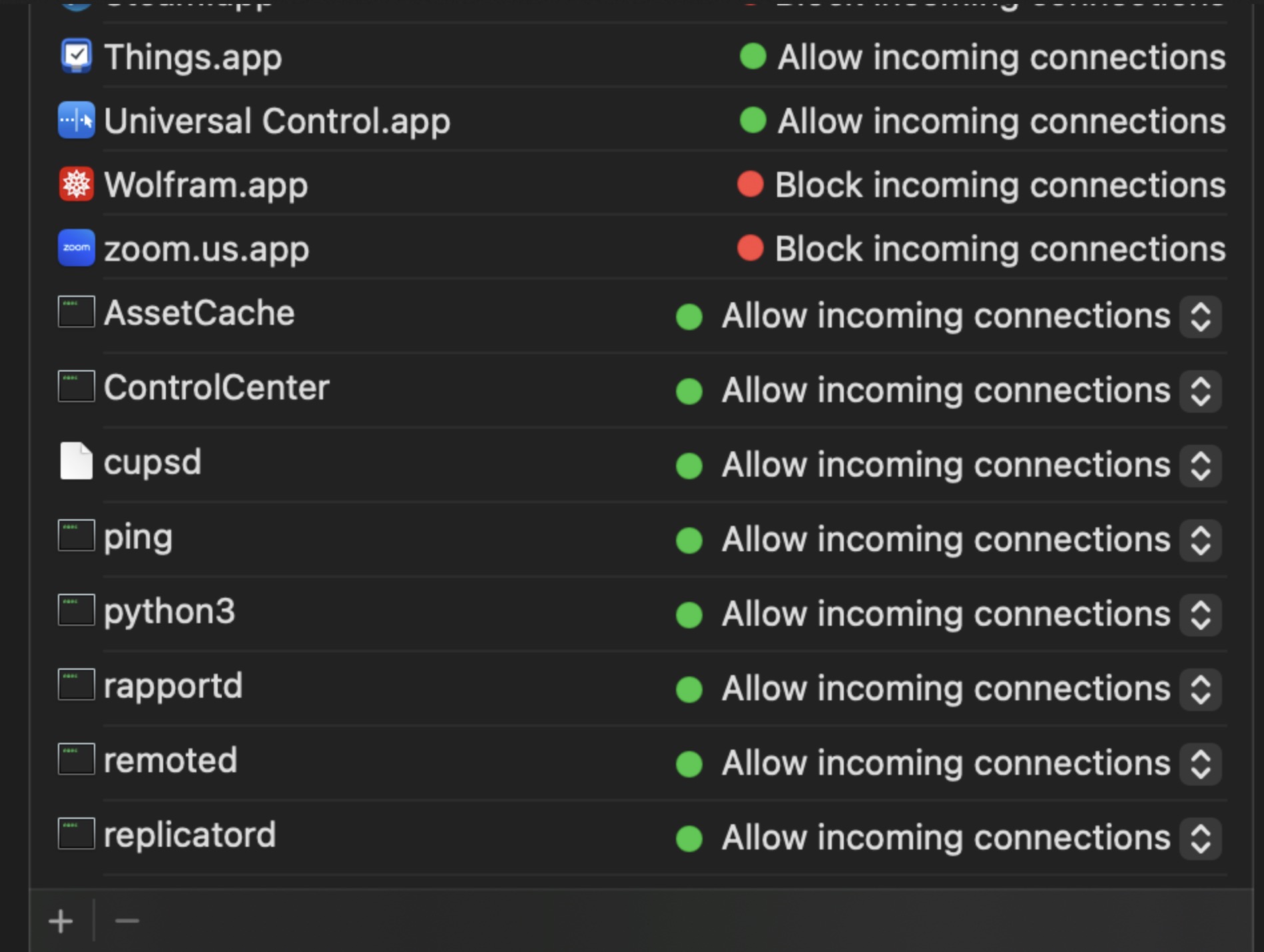
Sequoia Firewall Rules
Temporary Workaround:

While we are all eagerly waiting for an official update from Apple but there are a few workarounds that can be used to temporarily fix the issue:

1. Manually Whitelist App:

You can use following Terminal command to add applications to the firewall exceptions list, bypassing the issues in the graphical user interface (GUI).

					sudo /usr/libexec/ApplicationFirewall/socketfilterfw --add /Applications/<ApplicationName>.app

## few examples ##

# terminal
sudo /usr/libexec/ApplicationFirewall/socketfilterfw --add /System/Applications/Utilities/Terminal.app

# firefox
sudo /usr/libexec/ApplicationFirewall/socketfilterfw --add /Applications/Frefox.app

# google chrome
sudo /usr/libexec/ApplicationFirewall/socketfilterfw --add /Applications/Google\ Chrome.app

# safari
sudo /usr/libexec/ApplicationFirewall/socketfilterfw --add /Applications/Safari.app

# microsoft edge
sudo /usr/libexec/ApplicationFirewall/socketfilterfw --add /Applications/Microsoft\ Edge.app

# slack
sudo /usr/libexec/ApplicationFirewall/socketfilterfw --add /Applications/Slack.app

# photoshop
sudo /usr/libexec/ApplicationFirewall/socketfilterfw --add /Applications/Adobe\ Photoshop\ 2024/Adobe\ Photoshop\ 2024.app


2. Disable the Firewall:

If the terminal command doesn’t work, or if the issue persists across multiple apps, you can temporarily disable the firewall:

  1. Go to System Settings > Network > Firewall.
  2. Click the padlock to unlock the settings and disable the firewall.

While this is not an ideal solution but it allows your apps to function until Apple releases an official patch.

Conclusion

This firewall issue highlights the importance of thoroughly testing system updates, particularly when they affect critical tools like security settings. While disabling the firewall isn’t an ideal solution, it’s a necessary step for many users until Apple rolls out a permanent fix.

Keep following updates from Apple and trusted tech sources to stay informed about when this issue will be resolved.

For now, these workarounds should help you maintain functionality while keeping your apps running smoothly in MacOS Sequoia

A Guide to TCC Services on macOS Sequoia 15.0

macOS Sequoia 15.0 Privacy & Security Services
Basics of TCC Services on macOS

MacOS is known for its strong privacy and security features. One of the ways it ensures users are in control of their data and system resources is through TCC (Transparency, Consent, and Control) services. These services govern which apps can access sensitive information or interact with system-level resources such as your camera, microphone, contacts, and more. If you’ve ever used an app on MacOS and were asked for permission to access something like your location or calendar, that interaction is managed by the TCC framework.

In this guide, we’ll explore what TCC services are, why they matter, and complete list of all services of MacOS Sequoia 15.0.

What Are TCC Services?

TCC services control the permissions that apps request on MacOS. When an app tries to access something sensitive like your microphone or contacts, MacOS prompts you to grant or deny that access. This is a key part of how MacOS maintains user privacy and transparency, ensuring that apps only gain access to what you’ve approved.

These permissions cover a wide array of services, including:

  • Camera: Needed by apps like Zoom, FaceTime, or photo editors.
  • Microphone: Used by apps for recording audio, video conferencing, or speech recognition.
  • Contacts: Apps such as messaging platforms or email clients often need access to your contacts.
  • Bluetooth: Apps connecting to wireless accessories like headphones, speakers, or fitness devices will require Bluetooth permissions.

TCC services are essential to keeping apps from overstepping their boundaries, making sure that any sensitive data access is done with your explicit consent.

Role of TCC Services

The primary role of TCC services is to ensure that users remain in control of their privacy, preventing apps from accessing information they don’t have permission for. With cyber threats and data privacy concerns rising, having these checks and balances in place is critical.

For instance, without TCC services, an app could theoretically access your camera or microphone without you knowing. TCC database is protected by SIP and designed in such a way that, even a user with root permissions cannot modify it. MacOS will always prompt you before an app can use these features, making sure your device and personal data are secure.

TCC services also help maintain transparency. You can always review which apps have access to which services in System Settings > Privacy & Security > Privacy. This also allows you to revoke permissions from any app that you no longer trust.

List of TCC Services on MacOS Sequoia 15.0

* Check the complete list on Github.

Fetching the Latest TCC Service List

Apple can change TCC services without any notice. You can follow below guidelines to fetch the latest list of TCC services on your system.

					```bash
cd /System/Library/PrivateFrameworks/TCC.framework/Support
strings tccd | grep -iEo "^kTCCService.*" | sort
```
				
Practical Uses of TCC Services

TCC services are used in a variety of scenarios:

  • Developers: Need to understand how their apps will request permissions for certain functionalities, such as accessing the camera for a video-calling app.
  • Security-conscious users: May want to ensure that no apps have been granted unnecessary access to sensitive data, like their contacts or messages.
  • Everyday macOS users: Should familiarize themselves with how to control app permissions to maintain their privacy, especially when downloading new apps.
Final Thoughts

The TCC framework plays a crucial role in keeping MacOS users safe by providing transparency and control over the data and services apps can access. As a user, understanding these services and how to manage them is essential to ensuring your privacy.

Remember that the list of TCC services may change over time as MacOS evolves, and new services are introduced. If you’re using a version of MacOS newer than Sequoia 15.0, you can check for updated services by querying the TCC database to ensure you have the latest permissions and settings. And while most services have been confirmed, not all of them are manually verified, so if you encounter any discrepancies, it’s a good idea to report them.

Taking the time to manage TCC permissions will give you peace of mind and help protect your personal information on your Mac Operating System.